Benefits of a weekly work plan
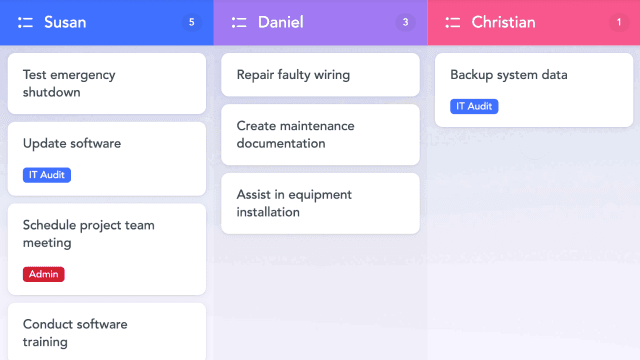
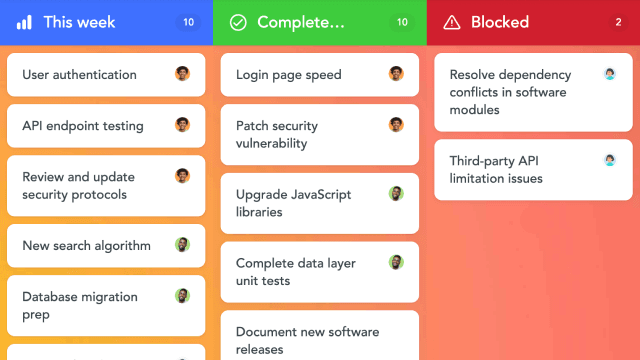
A weekly work plan is similar to one-week sprints used by many teams, especially in tech and IT. As a project manager, you can structure the week so that:
The most important tasks are prioritized
Your team has the right resources
Stress stays low and focus time is protected
The weekly action plan sets a clear agenda and helps team members align their work with the bigger goal. This makes it easier to:
Understand requirements and expectations faster
Consistently prioritize critical work
Track progress and recognize wins
With a consistent weekly plan, your team can structure tasks, allocate resources and set realistic expectations, so milestones get delivered reliably.
Why the MeisterTask weekly work plan template beats Excel
Excel plans get messy fast: updates are manual, different versions start circulating, and coordination happens outside the sheet.
In MeisterTask, everything stays in context. Tasks, owners, status, and comments are all linked and easily accessible.
Your team always knows what’s on this week, who’s doing what, and where things are stuck, without extra check-ins or spreadsheet chaos.
When to use the weekly work plan template
Weekly work plan templates give you and your team a clear view of the week ahead. With it, you can:
Break priorities down into daily tasks
Structure work by urgency
Coordinate deadlines and stakeholder meetings
Plan the week with more focus time
For example, if you’re rolling out a digital transformation initiative, the weekly work plan template helps you track tasks, owners, and timelines at a glance.
Step 1: Organize your weekly schedule into daily sections
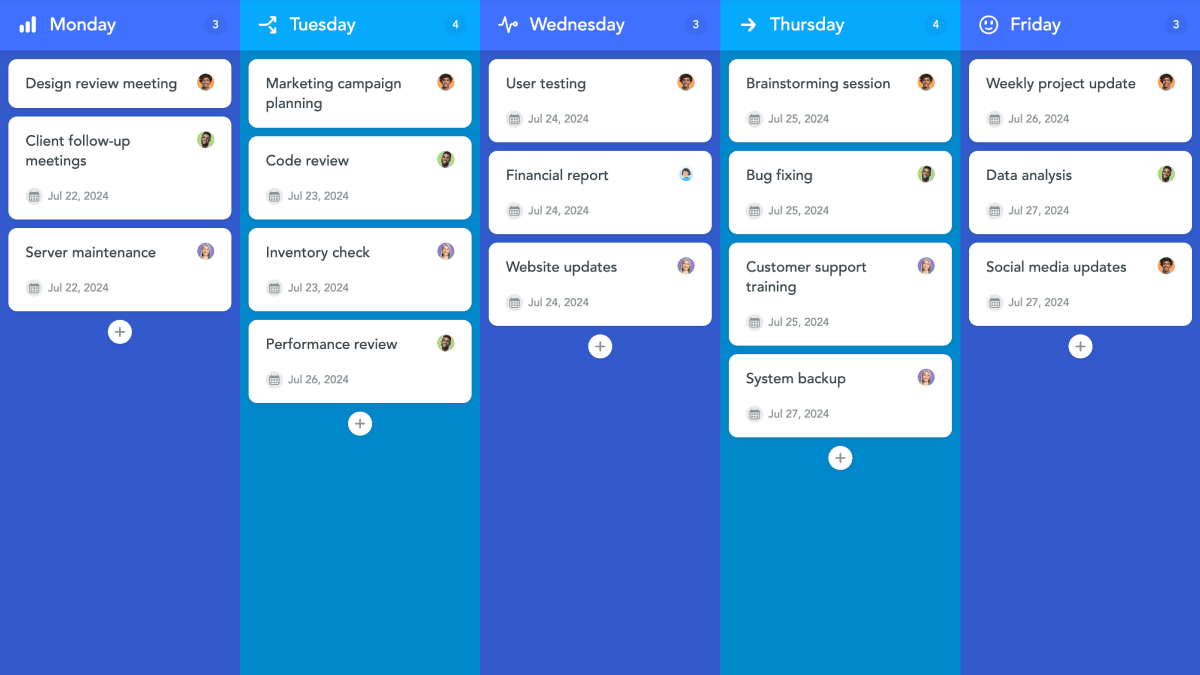
Begin by creating five vertical sections in your template, one for each day of the week: Monday, Tuesday, Wednesday, Thursday, and Friday.
Within each section, you can list out the tasks that must be completed throughout the week.
Step 2: Break down the weekly work schedule into daily tasks
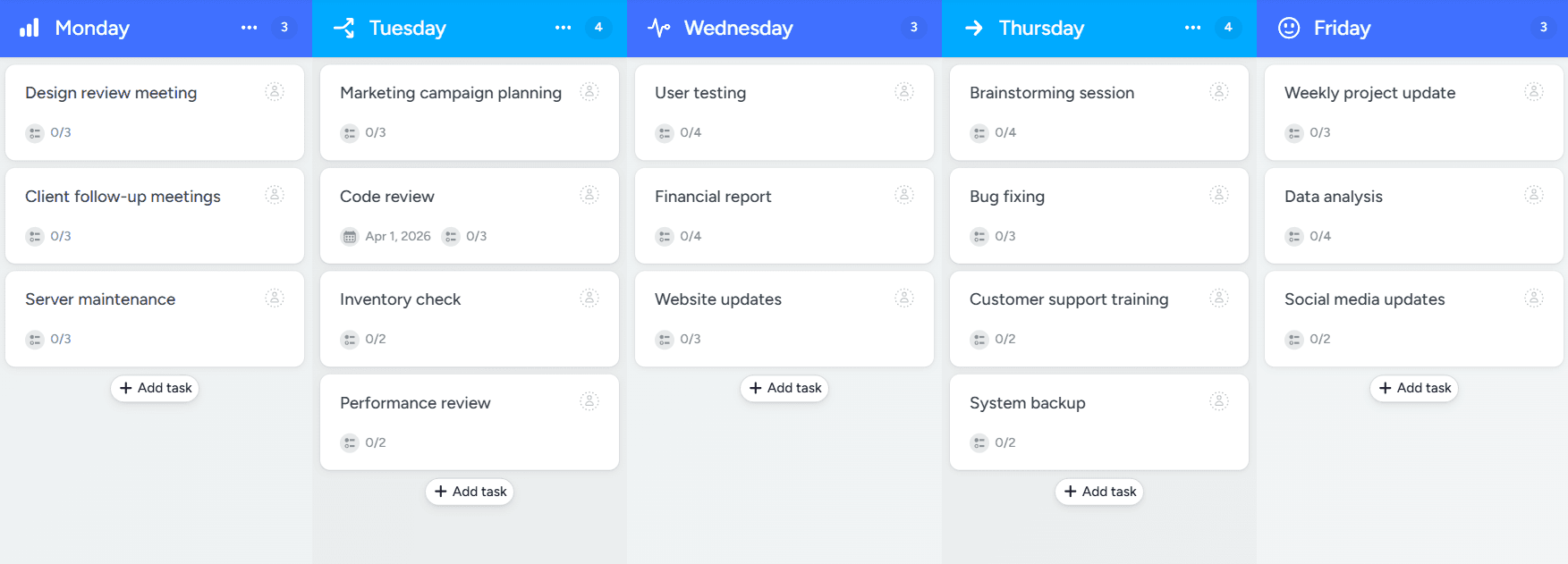
Now you’re ready to break down the weekly deliverables into daily tasks. You can create a new Task by clicking the + in any section of your project board. Be sure to add a detailed description of the expectations and assign a tag so that the assignee understands the task scope.
Remember that each section on your project board represents one day of the workweek. It only makes logical sense to schedule tasks that are dependent on other tasks being completed later in the week. Keep certain task dependencies in mind as you list out all the weekly work schedule requirements. This will help with setting priorities and helping team members manage their schedules in the most efficient manner.
Step 3: Create checklists for each of your tasks
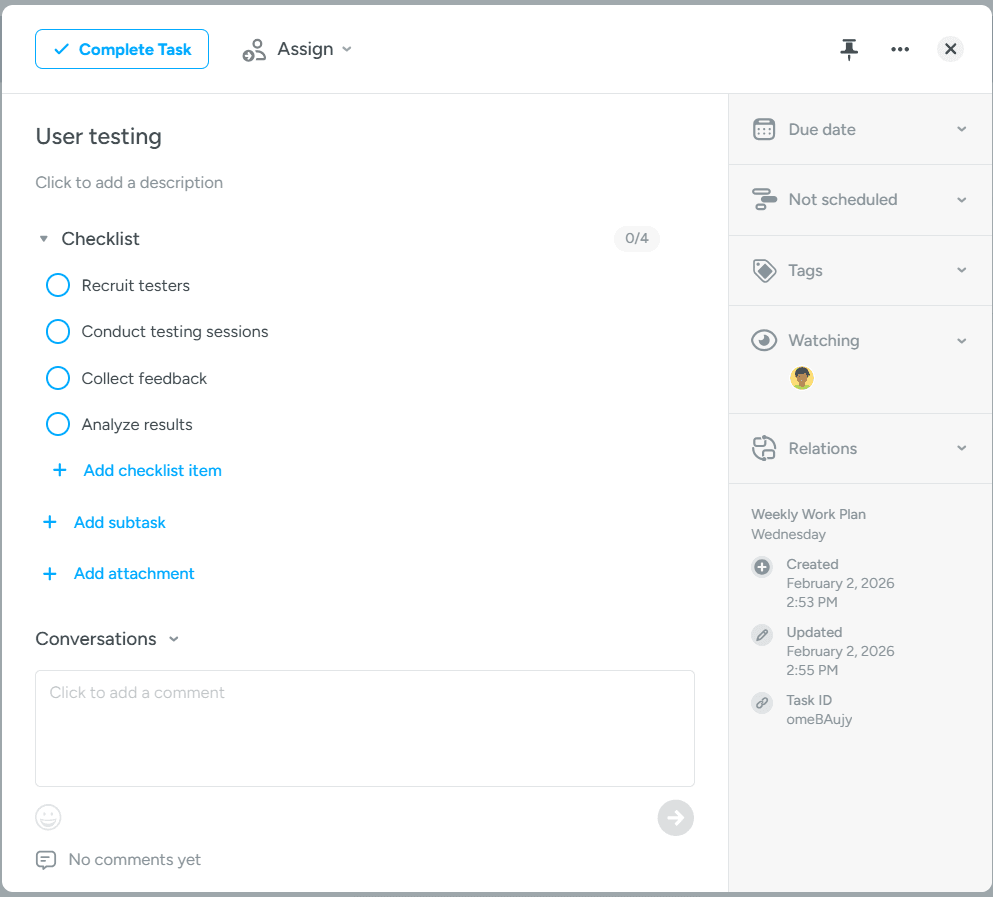
Every task will have a series of smaller sub-tasks that are part of the task completion sequence. On your project board, create checklists for each one of your tasks and assign those checklists to the team member responsible for completing the task. This will help the assigned team member manage the workflow so that the entire scope of the task is completed on time.
Checklists are particularly helpful if other tasks in the weekly work plan are dependent on the completion of the initial tasks. This will ensure all requirements for individual tasks are completed, ensuring tasks that begin later in the weekly work plan can proceed without any issues.
Step 4: Create your weekly workflow timeline
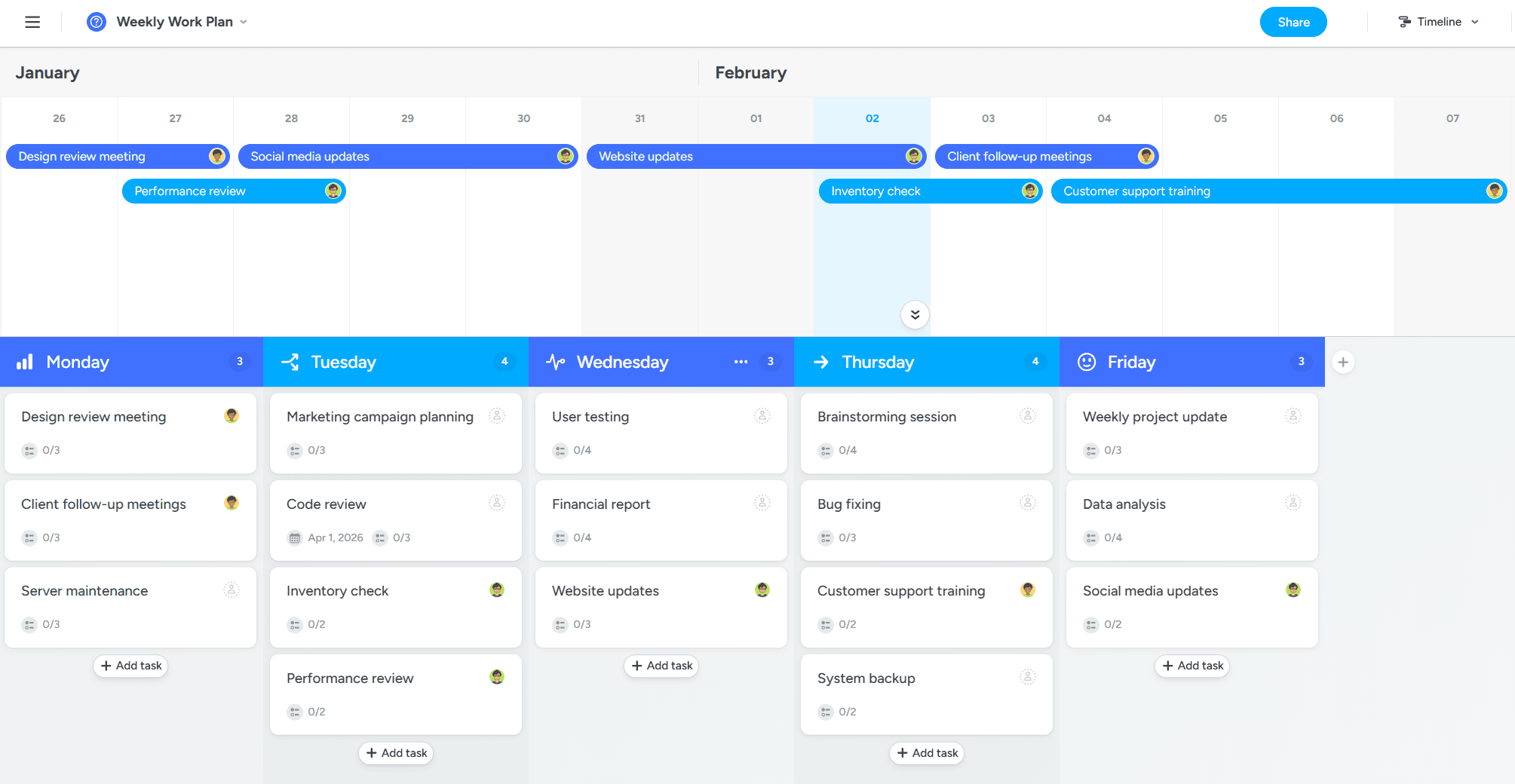
One of the best features of the weekly work plan template is the built-in project timeline feature. This feature resembles a Gantt chart and allows you to schedule all the tasks you’ve listed on your project board in a visual sequence throughout the week.
You can drag each of your tasks from your project board onto the project timeline and build your visualized weekly work plan. Once you drop a task onto the project timeline, click and drag the task horizontally to assign the appropriate start and end dates. This will create a visual overview of all tasks and project dependencies, creating a more complete picture of the project timeline.
Step 5: Monitor status updates and task dependencies
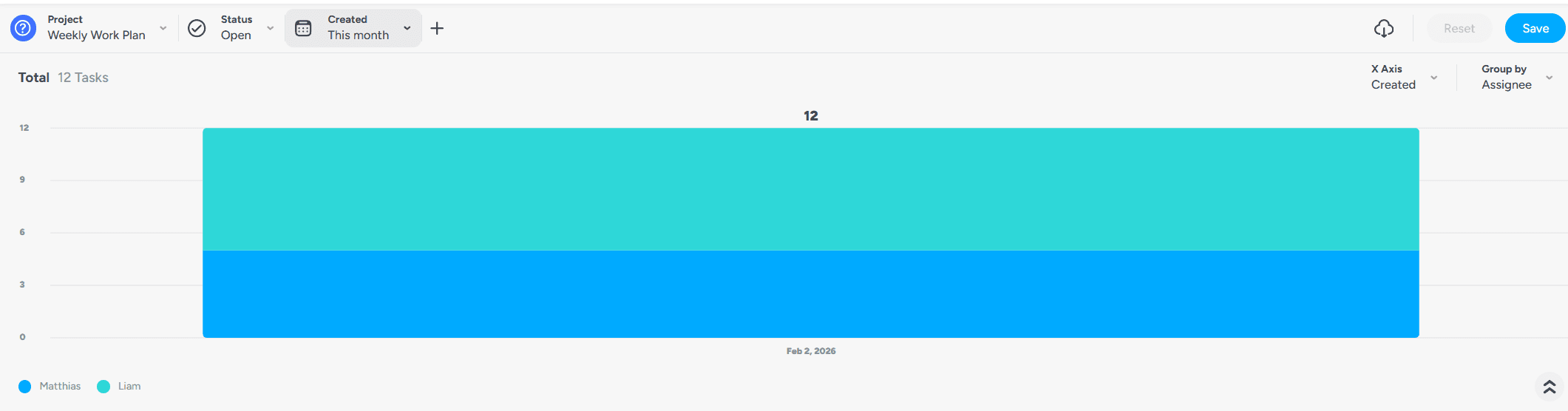
As tasks throughout the weekly work plan are completed, you can monitor task completion milestones and team performance with your template. Use the Reports feature of your weekly work plan template to generate daily status updates. You can monitor how team members are performing and if tasks are being completed by the scheduled deadlines.
If you have tasks that are dependent on earlier tasks being completed, these status updates help you verify the weekly work plan schedule. If necessary, you can then make any changes to your plan and modify the weekly work schedule.
Make your weekly work plan even more efficient with MeisterTask
A work plan template is a great starting point for organizing weekly tasks.
Once you've adopted a weekly work plan, MeisterTask has even more ways to help you stay organized, with less manual work and more transparency:
Automations: recurring tasks, automatic status updates and rules for repeatable processes.
Real-time status overview: see progress, bottlenecks, and workload at a glance.
Comments & files on the task: keep all information in context instead of scattered across email and chat.
Filters, tags & views: sort tasks quickly by priority, owner or status.
This turns a simple weekly plan into a scalable system that grows with your team.
FAQ | Frequently asked questions
Learn more about task management with MeisterTask.