
What is a Kanban board and why share it
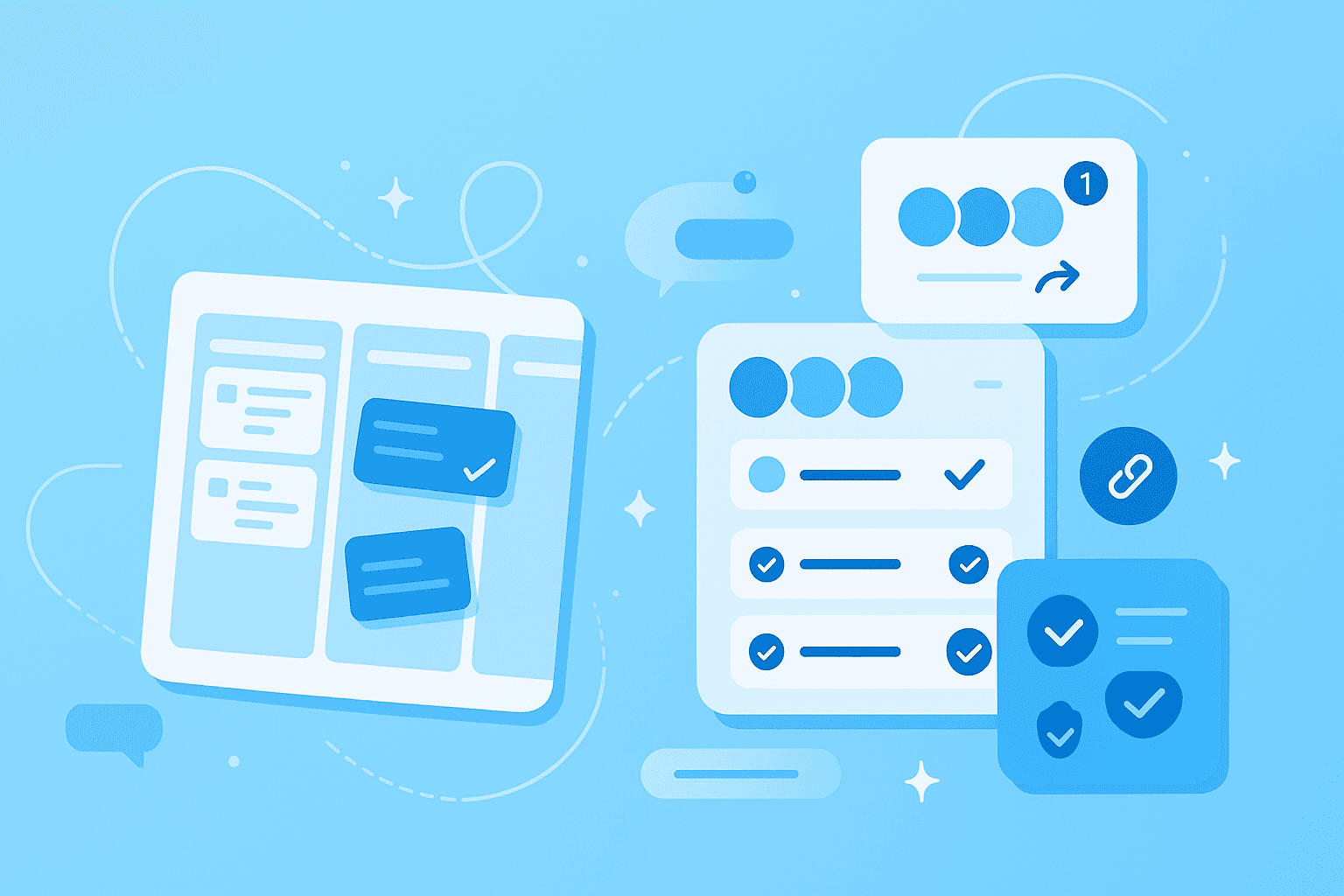
A Kanban board is a visual project management tool that organizes work into columns like "To Do," "In Progress," and "Done." Picture a whiteboard divided into vertical sections, with sticky notes representing tasks that move from left to right as work progresses. Each card contains details about a specific task, making it easy to see what everyone is working on at a glance.
When you share Kanban board with team members, something powerful happens — individual work becomes visible to everyone. This transparency brings four key advantages:
Improved transparency: Everyone sees the current workload and upcoming tasks
Better alignment: Team members understand how their work connects to others
Reduced communication overhead: No more "what's the status?" emails or meetings
Faster decision-making: Stakeholders spot bottlenecks and make adjustments in real time
Instead of information living in separate email threads or individual to-do lists, everything converges in one visual space where progress is clear and team collaboration happens naturally.
Step-by-step guide to inviting users
While each platform has its own interface, Kanban board sharing follows similar patterns across most tools. Understanding these common elements helps you share project board access confidently, regardless of which Kanban board software you use.
1. Locate your sharing options
Finding where to share your board is the first step. Most Kanban tools place sharing controls in predictable locations:
Look for a "Share" button: usually located in the top-right corner of the board interface
Check the board menu: some tools place sharing options within a dropdown or settings menu
Access project settings: sharing controls may be part of broader project or workspace settings
Watch for icons resembling people, arrows pointing outward, or chain links — these visual cues typically indicate sharing functionality.
2. Choose the right invitation method
Different situations call for different sharing approaches. Most Kanban tools offer these options:
Email invitation: enter email addresses directly to send invites
Shareable link: generate a link that can be shared via email, chat or other channels
Organization-wide sharing: make the board visible to everyone in your company or workspace
External guest access: invite clients or partners outside your organization
Email invitations work best when you know exactly who needs access — like inviting your five-person marketing team to a campaign board. Shareable links excel for quick access or when you're sharing with a large group. Organization-wide sharing fits company initiatives where transparency matters. External guest access lets you collaborate with clients while keeping other boards private.
3. Configure permissions
Permission levels control what each person can do on your board. Think of permissions as different keys to your workspace — some open every door, while others only let you look through windows.
Permission level
What they can do
Best for
View-only (or Observer)
Can see the board but cannot make changes
Stakeholders, clients and executives who need visibility without editing
Comment (or Contributor)
Can view and add comments but cannot move or edit cards
Reviewers or advisors providing feedback
Edit (or Member)
Can create, move and edit cards and tasks
Active team members doing the work
Admin (or Owner)
Full control including sharing settings and board deletion
Project managers and board creators
Setting the right permission level protects your workflow from accidental changes while giving people the access they need. A client reviewing project progress doesn't need the same permissions as your developer moving tasks through the workflow.
4. Confirm and monitor access
Before clicking "send," double-check your invitation list. Verify email addresses match the intended recipients — sending board access to the wrong person creates security risks and confusion.
After sending invitations, track who has joined through your board's member list. Some platforms show pending invitations separately from active members, making it easy to follow up with anyone who hasn't responded. As projects evolve, review and adjust permissions regularly. When a contractor finishes their work or someone switches teams, remove their access promptly to maintain security.
Permission levels and access controls
Beyond the mechanics of clicking buttons, strategic permission management determines whether your shared board becomes a collaboration powerhouse or a chaotic free-for-all. Smart Kanban board access control starts with understanding why each person needs board access and matching their permissions accordingly.
Consider these permission strategies:
Match permissions to roles: Give edit access only to people actively moving tasks, while stakeholders who just need updates get view-only access
Consider data sensitivity: Financial data, personnel information and strategic plans require tighter access controls than general project boards
Plan for external collaboration: Before inviting clients or vendors, decide exactly which columns and cards they need to see
Use time-limited access: Remove permissions when projects end or team members change roles rather than letting access accumulate
The difference between board-level and workspace-level sharing affects how you structure Kanban board permissions. Some platforms let you share entire workspaces containing multiple boards, while others focus on individual board sharing. Workspace permissions often cascade down — if someone has workspace admin rights, they typically get admin rights on all boards within that workspace.
In MeisterTask, you can share individual projects with specific team members while maintaining separate permissions for other projects in your workspace, giving you granular control over who sees what. This granular control means your product roadmap can stay confidential while your marketing calendar remains open to the whole company.
Security and compliance considerations
For teams handling sensitive data — whether that's patient records, financial information and government contracts — security isn't optional. Understanding your Kanban tool's security features helps you collaborate effectively while meeting compliance requirements.
Key security factors include:
Data location and sovereignty: Where your data lives matters for compliance — MeisterTask is hosted in Germany and is GDPR compliant
Encryption and access logs: Look for tools that encrypt data both in transit and at rest, plus maintain audit trails showing who accessed what and when
Guest access policies: Guest access (allowing external users to view or edit specific boards without full workspace access) requires careful configuration to prevent data leaks
Authentication requirements: Two-factor authentication and single sign-on add security layers that prevent unauthorized access even if passwords are compromised
Certification standards: ISO 27001 certification demonstrates a vendor's commitment to information security — MeisterTask's ISO 27001 certification provides this assurance
This means your sensitive project data stays protected and compliant with European privacy regulations, giving teams in regulated industries confidence to collaborate digitally.
Beyond technical security, establish clear policies about information classification. Not every detail belongs on a shared board — salary discussions, performance reviews and strategic planning might require separate, restricted boards with minimal access.
Common challenges and troubleshooting tips
Even with careful planning, shared boards can encounter hiccups. Here's how to solve the most common issues teams face when collaborating on Kanban boards.
1. Access errors and permission issues
When someone can't see or edit a board as expected, systematic troubleshooting usually reveals simple fixes. Start by asking them to check their spam folder — invitation emails sometimes get filtered. Verify you entered their email correctly, paying attention to common typos like .con instead of .com.
If they can see the board but can't make changes, check their permission level. View-only permissions often get assigned by accident when edit access was intended. For sync issues where changes don't appear immediately, have users refresh their browser and check their internet connection before investigating deeper technical problems.
2. Managing external users
Collaborating outside your organization introduces unique challenges. External users often need to create accounts before accessing your board, which can delay project kickoffs. Look for guest access features that let external collaborators join immediately through invitation links.
When clients struggle with unfamiliar interfaces, start them with view-only access and provide a brief orientation. Create a simple guide showing which columns represent what stages and how to interpret card information. External collaborators might not follow your team's conventions, so establish clear guidelines upfront about card titles, descriptions and which columns to use.
3. Maintaining board integrity
Shared boards can quickly become disorganized without proper structure. When multiple people edit simultaneously, work gets duplicated or cards end up in wrong columns. Assign clear ownership for different board sections — let the design team manage their column while developers handle theirs.
Accidental deletions disrupt workflows, especially when someone moves or archives cards by mistake. Use permission levels strategically and create board templates that enforce consistency. With many active users, notification overload becomes real. Configure notification settings to focus on relevant updates and encourage @mentions only when specific input is needed. Well-configured permissions prevent most integrity issues before they start.
Move forward faster with collaborative Kanban
When done right, secure sharing creates transparency without sacrificing control, keeping everyone aligned while protecting sensitive information.
Look for Kanban platforms that balance powerful sharing features with intuitive controls. The best tools make permission management simple without compromising security. MeisterTask brings together secure, collaborative Kanban boards with the simplicity teams need to get started quickly. With ISO 27001 certification, GDPR compliance and hosting in Germany, it's built for teams that can't compromise on security.