
What are remote work tools?
Remote work tools are the software applications distributed teams use to communicate, collaborate, manage tasks and stay aligned without sharing a physical office. Most teams pick them up reactively: one app for chat, another for video, another for files, another for tasks. There is no plan for how the pieces fit together.
The result is tool sprawl. Information scatters across platforms, no single source of truth exists and people spend more time switching between apps than doing the work. A well-designed remote work tool stack covers five categories with as few tools as possible. MeisterTask acts as the task management and coordination layer that connects the other four, so the work stays in one place instead of drifting apart.
Why most remote teams have too many tools and not enough structure
Think back to the last few years. When teams moved to remote work, they adopted tools fast, often in a rush, and then never went back to consolidate. Each new problem got a new app. Nobody stepped back to ask how the apps should connect.
That habit adds up. A Harvard Business Review study found the average digital worker toggles between apps and websites nearly 1,200 times per day. Every switch costs a few seconds and a bit of focus, and those small taxes compound across a full day of remote work.
Here is the point that matters.
It is the lack of a deliberate structure connecting them. Five tools that share data and pass work between each other beat 12 tools that each hold a separate copy of the truth. Once you know which categories you need, you can decide what to keep, what to drop and what should tie it all together.
The five categories of remote work software every distributed team needs
Every distributed team relies on the same five categories, whether or not they name them. When you map your stack to these five, gaps and duplicates become obvious. Here is what each category does, why it matters when you work apart and what to look for.
Communication
Communication tools split into two modes. Synchronous tools cover live conversation: video calls and instant messaging for decisions that cannot wait. Asynchronous tools cover recorded updates and threaded discussions for people spread across time zones who should not have to be online at the same moment.
When you work remotely, you lose the hallway chat, so this category carries more weight than it does in an office. Look for threading that keeps topics separate, strong search so past decisions stay findable and integration with your task tools so conversations do not float free of the work. Choosing the right mix of live and recorded communication is its own skill worth learning.
This is also where discussions tend to scatter. In MeisterTask, task comments keep a discussion attached to the task it relates to, so the decision lives with the work instead of getting lost in a busy chat channel.
Task management and project coordination
Task management is the central layer. It tracks who is doing what, when each piece is due and where everything stands right now. Without it, remote teams lose the shared picture that a physical office provides for free, and status updates turn into a stream of "any progress?" messages.
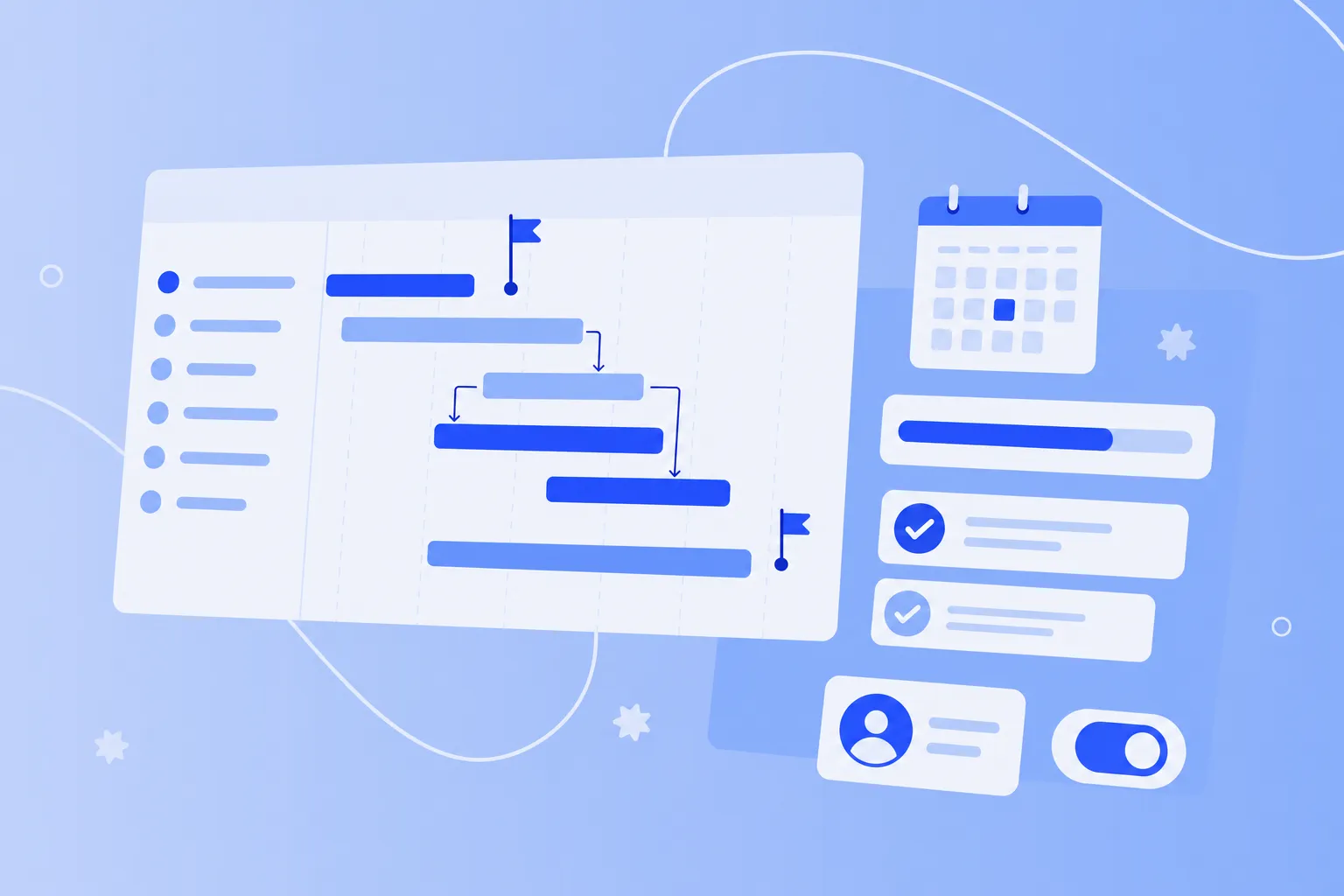
Look for Kanban boards that show work at a glance, a timeline view for longer projects, recurring tasks for repeating work and integrations with your communication and file tools. The coordination layer only earns its place when it connects to everything else.
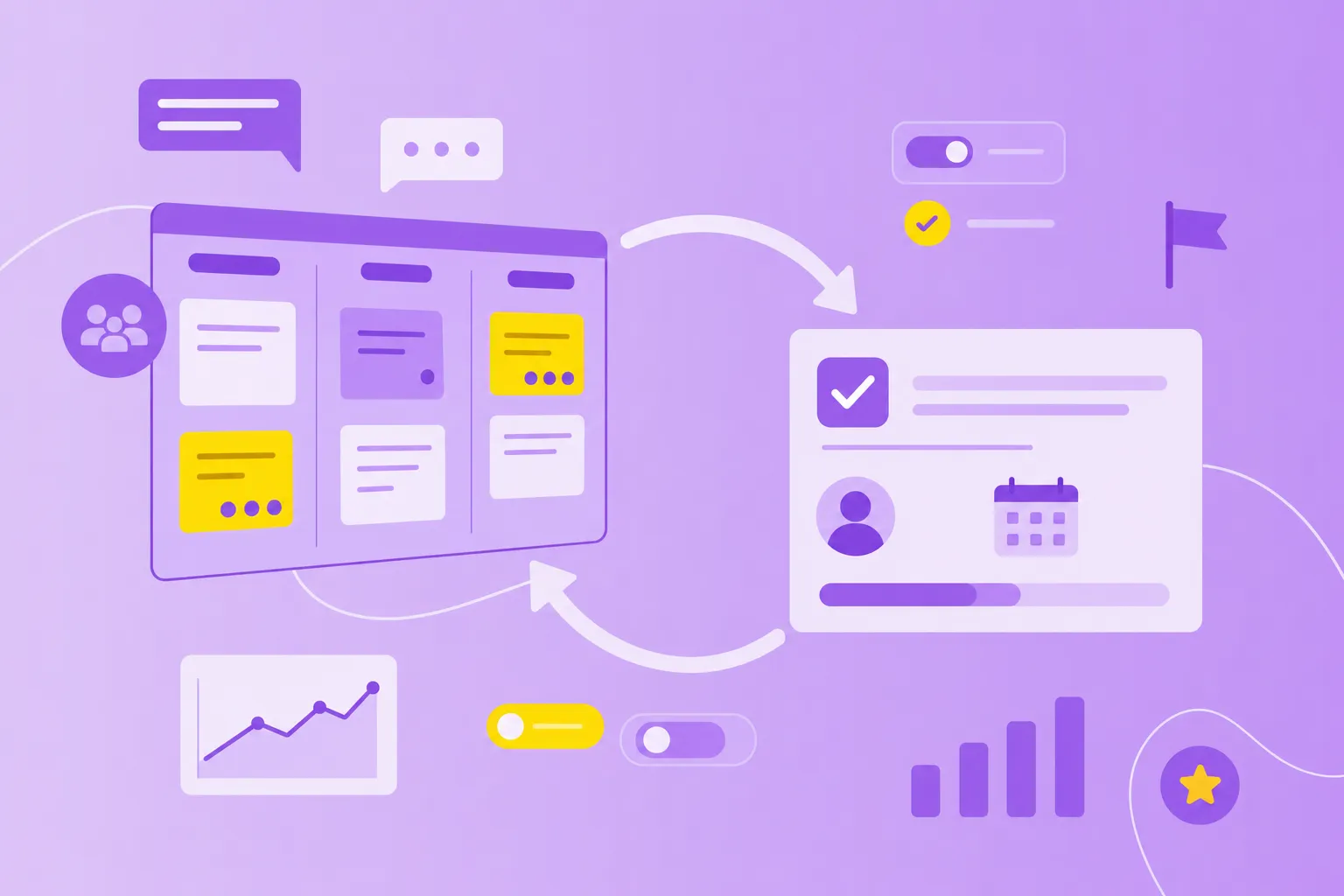
This is where MeisterTask sits in the stack. MeisterTask handles task assignment with clear deadlines, board-level visibility so the whole team can see progress and workflow automation that takes over recurring work. Notes gives you shared documentation right beside the boards, so the plan and the record of the work stay together.
File storage and document collaboration
File tools give your team shared drives, real-time document editing and version control. Instead of emailing "final_v3" back and forth, everyone works from one live copy and can see who changed what.
For a distributed team, this category prevents the quiet chaos of duplicate files and outdated attachments. Look for access control so the right people reach the right documents, search that surfaces a file fast and integration with your task tools so documents connect to the work they support.
MeisterTask helps here through file attachments on tasks, plus Google Drive and OneDrive integrations. A spec, a contract or a design lives on the task it belongs to, so nobody digs through a separate drive to find the version that matters.
Time management and scheduling
Time tools handle calendar coordination across time zones, meeting scheduling and time tracking. When your team spans several countries, finding a shared hour is a real puzzle, and this category solves it.
Look for time-zone overlap visibility so you can see when people share working hours, async-first scheduling that avoids forcing everyone into one call and time tracking tied to tasks rather than a separate stopwatch. A structured recurring meeting, such as a regular jour fixe, and a habit of time blocking both help a distributed team protect focus.
MeisterTask supports this with built-in time tracking on tasks, so you see where hours go without adding another app. Calendar integrations bring your deadlines into the schedule you already check, keeping due dates visible next to your meetings.
Knowledge management
Knowledge tools hold the things a team needs to remember: a team wiki, process documentation and onboarding materials. This is the memory of the organization, and it matters most when you cannot lean over to ask a colleague how something works.
For remote teams, good knowledge management shortens onboarding and stops the same questions from repeating in chat. Look for strong search, clear structure so people can find a page in a few clicks and integration with your tasks so documentation sits near the work.
In MeisterTask, Notes works as a knowledge base linked to your task boards. Decisions, meeting notes and process docs live beside the tasks they inform, so the answer is one click from the work rather than buried in a separate system.
How to audit your current remote tool stack
Before you add anything, take stock of what you already have. A short audit shows you where the sprawl is and points to the one change that will help most. Work through these four steps with your team.
1. List every tool your team uses
Ask each person to write down what they open on a normal day, then combine the lists into one. Most teams are surprised by the total once the personal favorites and forgotten subscriptions surface. You cannot fix a stack you have not seen in full.
2. Map each tool to a category
Assign every tool to one of the five categories: communication, task management, file storage, time management or knowledge. Some tools cover more than one, and that is fine to note. This map turns a messy list into a clear picture.
3. Identify gaps and overlaps
A gap is a category no tool covers. An overlap is two tools doing the same job. Say your team maps its stack and finds both Slack and a second chat app in daily use, plus files split between Dropbox and Google Drive. That is two overlaps. Pick one chat tool and one file store, migrate and retire the rest.
4. Choose your integration anchor
One tool should become the hub that the others connect to. For most teams this is the communication or task management tool, because that is where work flows. MeisterTask integrates with Slack, Microsoft Teams, Google Workspace, Outlook and Zapier, which makes it a practical coordination anchor for the rest of your stack.
How to build your remote tool stack in MeisterTask
Once your audit points to a coordination anchor, you can set it up as the layer everything else feeds into. These four steps show how to build that hub in MeisterTask, from the first board to connected chat, files and time. Teams running full remote projects can go further with proven remote work solutions.
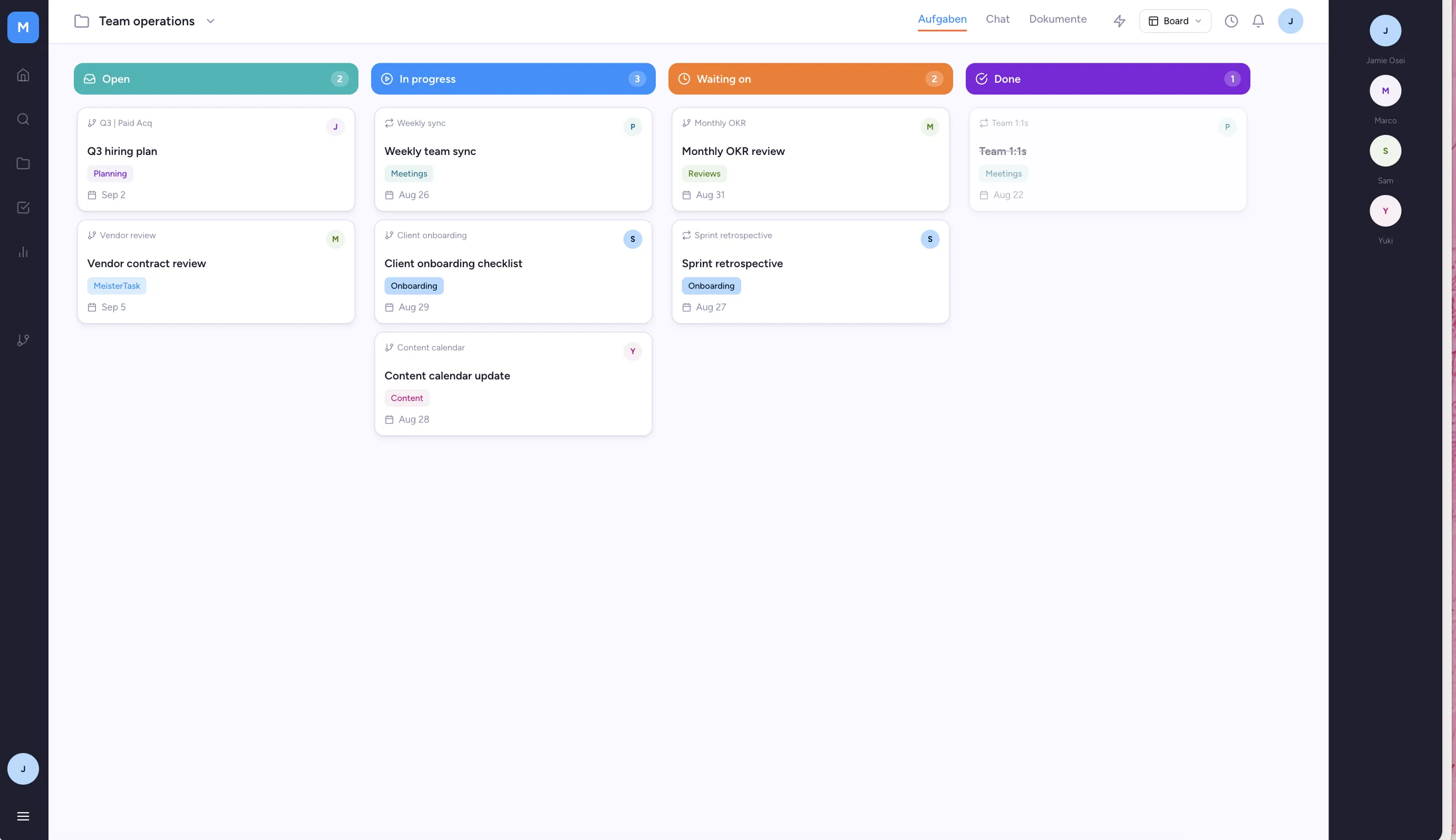
1. Create a team operations board
Start with one board for how your team runs. Add sections for recurring meetings, weekly planning and monthly reviews so the rhythm of work is visible in one place. A clear weekly planning habit gives the board a steady heartbeat everyone can follow.
2. Connect communication tools
Link Slack or Microsoft Teams so task updates flow into the chat your team already uses. When a task moves or a deadline shifts, the update lands where people are looking, and the conversation stays tied to the task.
3. Link file storage
Connect Google Drive or OneDrive so a document attached to a task is reachable straight from the board. Your team stops hunting through a separate drive, because the file sits with the work it supports.
4. Set up time tracking
Turn on built-in time tracking on tasks so the team sees where hours go without opening another app. Over a few weeks, that record shows which work eats the most time and where a process could change.
Turn a scattered stack into a connected system
The path is straightforward. Cover the five categories, audit what you own and choose one tool to anchor the rest so information moves on its own instead of by copy and paste.
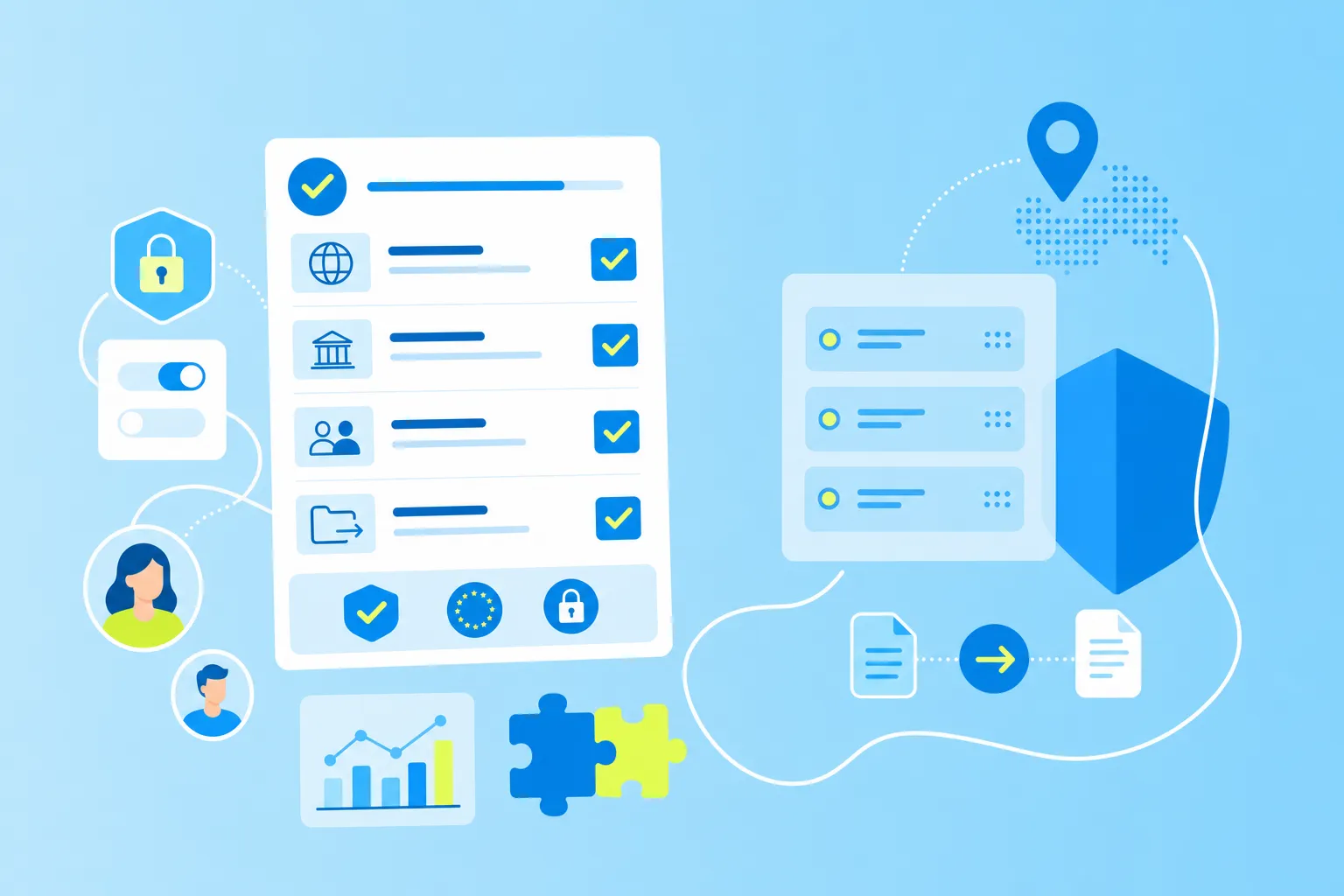
MeisterTask fits that role by keeping work organized, progress transparent and collaboration secure. It is GDPR compliant and hosted in Germany, so a distributed team can coordinate with confidence about where its data lives. Start with one connected board, and let your stack grow tighter from there.