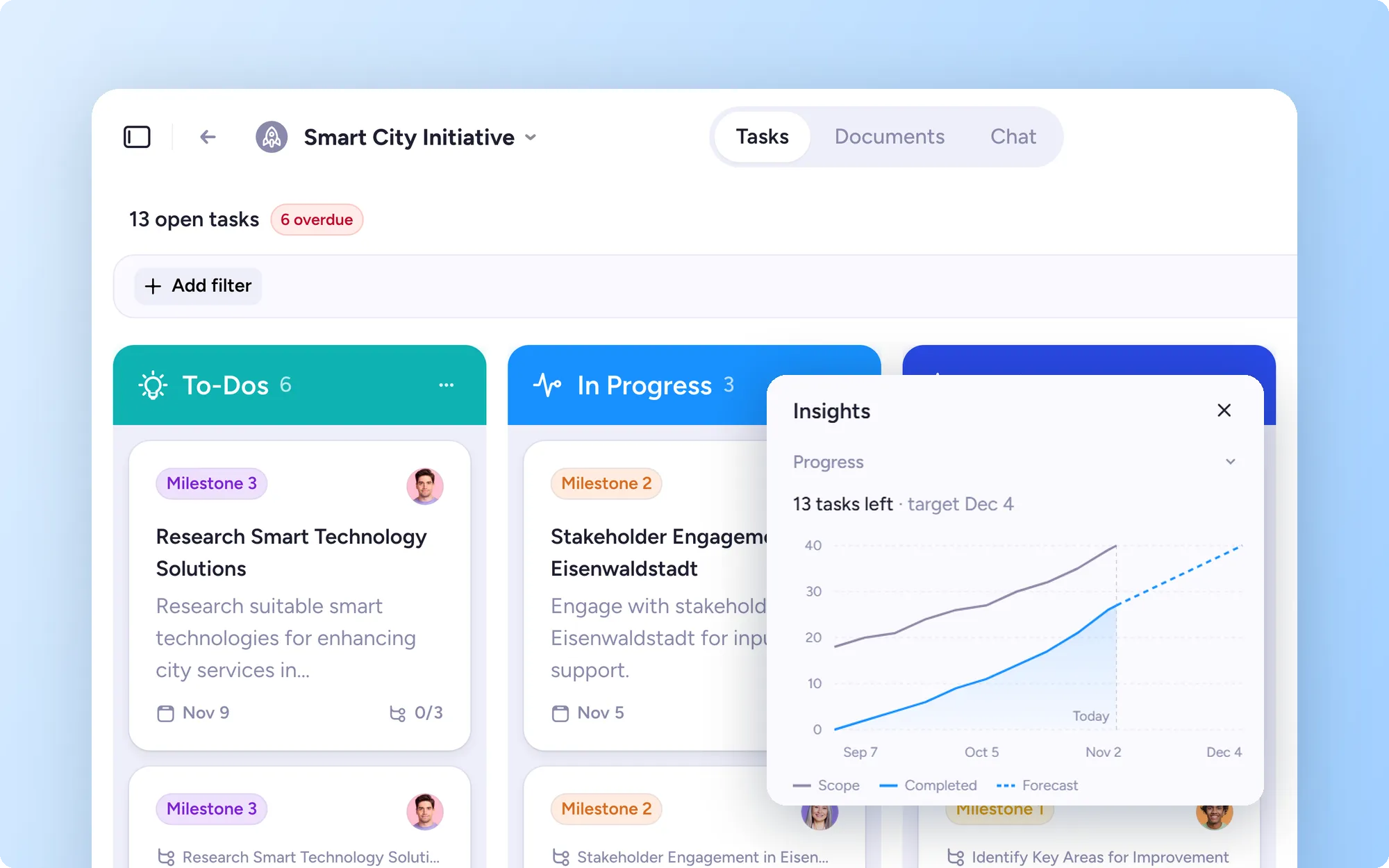
Your project board, list and timeline views have been rebuilt from the ground up. They're quicker to work in, easier to read and, for the first time, they show how your tasks connect. Switch them on via the button in the bottom-left corner of any project.
Update tasks without opening them
Change the assignee, due date or tags right on a board card or list row. Right-click a card, or use the ⋯ menu in the list, to complete, move, duplicate or archive it. A badge shows which tasks are blocked. Click it to see what they're waiting on.
Find what matters faster
Filters have moved to a new bar above the project view, with options to filter on overdue or blocked tasks.
The list view gets more flexible too:
Group tasks by section, assignee, due date or status
Sort by any column
Choose which columns show
Changing your layout, grouping, columns or sorting only changes your view, not anyone else's.
See where your project stands
The new Insights panel gives you the state of a project at a glance:
Open, overdue and completed tasks, plus tasks per section
A progress chart with a forecast to your target date
Upcoming deadlines
An AI summary of recent activity
Work from your keyboard
Most actions in the board and list work from the keyboard, including drag and drop and selecting several tasks at once. Type / to see all shortcuts.
The timeline shows how tasks connect
Switch between Board, List and Timeline views. Here's what's new in Timeline:
Task relations on the chart. Icons mark blocked tasks and subtasks, lines connect to blocked tasks or subtasks, and a hover card lists relations.
Subtasks under their parent. Collapse them when you don't need the detail. A parent without dates can take its subtasks' dates in one click.
Tasks without dates are visible too. And you can add dates by drawing directly on a task’s row.
Edit due dates directly on the timeline
Move tasks together. Select several tasks at once and shift them in sync.
Reassign from the bar. Click the avatar to reassign a task fast.
Move a blocking task, and its blocked tasks can follow.
A tidier app header
Your avatar now replaces the team logo in the bottom-left corner, and help and notifications move there with it.
The tasks and teams icons are gone too:
Find your tasks under Tasks in the left-hand navigation
Team invites now show up in your notifications
Get a full overview of what's changed in your project views.
Who can use the new views
The new board and list views are on every MeisterTask plan. The timeline is on the Business and Enterprise plans, as before.