
What is a project dashboard?
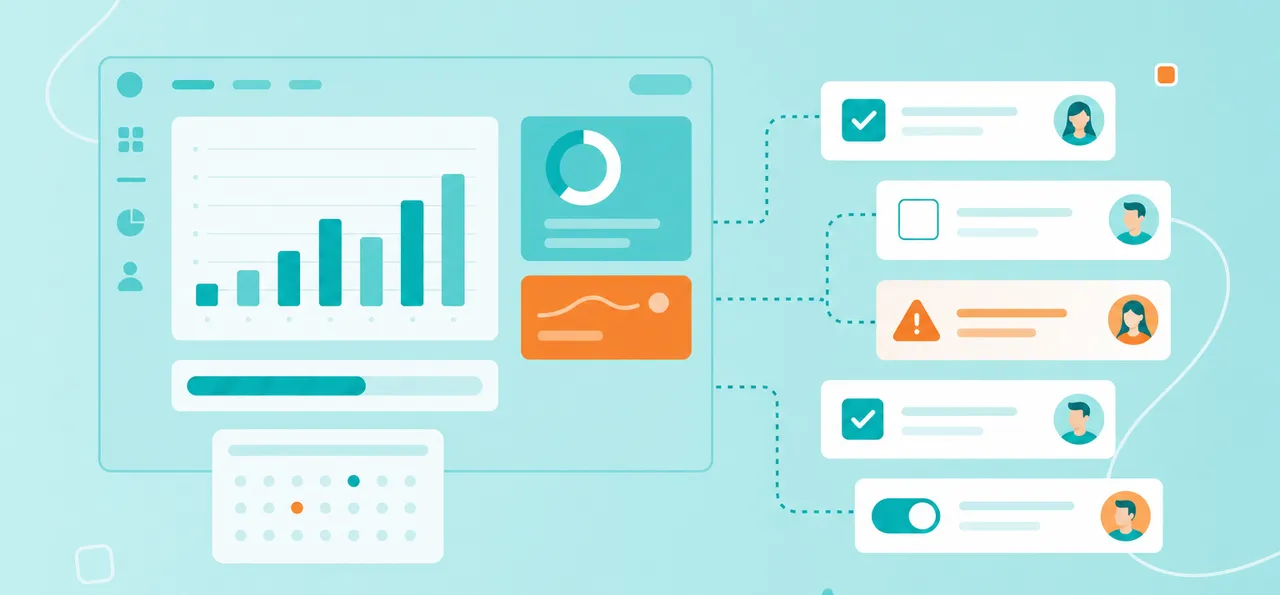
According to Nielsen Norman Group's dashboard research, a dashboard is a single-page view of at-a-glance information that people can act on quickly. The name comes from a car dashboard: it shows speed, fuel and a warning light when something needs attention, while the engine logs stay under the hood.
Most teams need two kinds of project management dashboards:
Operational dashboard: The project team uses it every day to coordinate tasks, owners and deadlines.
Reporting dashboard: Sponsors, clients and leadership check it weekly to see whether the project is on track.
The best project tracking dashboard setups draw both views from the same data, so nobody maintains two versions of the truth. A good dashboard replaces status emails, while a bad one becomes one more thing to update that nobody reads.
What should a project dashboard show?
A good project dashboard shows five things: overall status at a glance, progress against timeline, upcoming deadlines, active risks or blockers and project-specific KPIs. Adding more tends to create noise that stakeholders learn to skip.
To make each element concrete, picture a marketing team relaunching the company website. Here is how its reporting dashboard comes together.
Overall project status
Start with a single red, amber or green indicator and one sentence explaining the color. Treat it as the line busy executives may read first, or only. Define what each color means up front, and keep it honest: a green status that hides a serious blocker destroys trust in the whole dashboard.
On the website relaunch, the status is amber because a vendor delay threatens the go-live date.
Progress against timeline
Show how far the project has moved: work complete, milestones passed and milestones ahead. A basic bar or timeline view works better for stakeholders than a detailed Gantt chart with every dependency. If your team plans in Gantt format, a Gantt chart template keeps the detailed plan separate from the summary view. On the website relaunch, four of six phases are complete, and content migration is underway.
Upcoming deadlines
List the next three to five deadlines with dates and owners. This tells stakeholders what to watch without requiring them to read the full task list. For the website relaunch, it looks like this:
Oct. 20: Content freeze, owned by the content lead
Oct. 27: Vendor API integration, owned by the developer lead
Nov. 3: User acceptance testing, owned by the QA lead
Nov. 10: Go-live, owned by the project manager
Active risks or blockers
Show the top two or three risks affecting delivery right now, each with a mitigation action and an owner.
To score likelihood and impact consistently, use a risk matrix to determine which risks merit inclusion.
The website relaunch has one blocker. The vendor's API is two weeks late, so the developer lead is testing a fallback integration.
Project KPIs
Pick three to five metrics that indicate project health, such as on-time delivery rate, budget variance, or scope change count. The right set depends on the project type: a software team may track the defect rate, while a construction team may track schedule variance. For help choosing and defining them, read our article on project KPIs. If your team can't agree on which KPIs matter, brainstorm candidates in a MindMeister mind map first, and keep only those that would change a decision.
The website relaunch tracks budget spent against plan, tasks delivered on time and approved scope changes. Each KPI shows a target next to its current value.
What to leave off a project dashboard
In practice, project dashboards often fail by showing too much. Four things do not belong on a reporting dashboard: task-level activity, vanity metrics, historical data nobody acts on and raw numbers without context.
Every extra chart competes for a few seconds of attention. Cut these first:
Task-level activity. Individual task updates, comment threads and card moves belong on the team board. Stakeholders who see this detail start managing tasks instead of outcomes.
Vanity metrics. Total tasks created or comments posted look busy but say little about whether the project will land on time. If a number can rise while the project slips, it does not belong.
Historical data nobody acts on. Last quarter's burn rate or a full log of closed tasks adds scrolling without adding decisions. Archive it, or link to it from a separate report.
Raw numbers without context. "42 open tasks" means nothing without a target or a trend. Show the number against plan, or show whether it is rising or falling.
The practical rule: if removing a metric would not change a decision, remove it.
Operational dashboard vs reporting dashboard
An operational dashboard is used daily by the project team to coordinate work: it is detailed, task-level and updated in real time. A reporting dashboard is used weekly by stakeholders to track project health: it is summarized, metric-level and updated on a set cadence. Both can use the same data but need different presentations.
Audience: The operational view is for the people doing the work, while the reporting view is for sponsors, clients and leadership.
Level of detail: The operational view shows tasks, assignments and due dates, while the reporting view shows percentages, trends, risks and next milestones.
Update cadence: The operational view changes whenever someone moves a task, while the reporting view refreshes on a set weekly rhythm.
Question it answers: The team asks "what do I do next," while stakeholders ask "are we on track."
The operational board also holds incoming work, such as new requests and the product backlog the team pulls from next. The reporting view serves as an executive summary for people who will not read the details.
In MeisterTask, the Kanban project board gives the team its operational view. Each section stands for a stage, and tasks carry assignees, due dates, comments and checklists. Reports and the read-only Viewer role give stakeholders the reporting view, drawn from the same data.
How to build a project dashboard in MeisterTask
MeisterTask provides project dashboard functionality through four features: Reports for summary metrics, custom fields for KPI tracking, shared project access and Timeline for a calendar-based view of scheduled tasks. Stakeholders see the same data the team uses, without a separate reporting layer.
Custom fields and Custom Reports are part of the Business plan, while Quick Reports are available on all plans. For example, consider an operations team rolling out a production line changeover across three plants. Plant directors need one view of the rollout, without a weekly slide deck.
1. Set up custom fields for your KPIs
Custom fields turn each KPI into a value you track directly on a task. Open Project settings > Custom Fields and add a field for each metric, choosing a text, number or drop-down type. The plant rollout team adds number fields for budget spent, tasks on time and open risks, plus a status drop-down.
Update the values during your weekly review so the dashboard reflects the current state. A KPI that is three weeks old does more harm than a missing one, because it looks trustworthy.
2. Create a project overview section
Add one section at the start of your board, on the far left, and name it Project overview. Create one task card per KPI, with a card for budget spent, one for tasks on time and one for open risks. Each card shows its current value in the matching custom field.
Use task comments to explain any variance in a sentence or two. When Plant 2 runs over budget, the comment says why and what happens next. Directors get the number and the story in one place.
3. Use Reports for progress at a glance
MeisterTask Reports turn project data into a summary stakeholders can scan. Quick reports such as All Open Tasks, Recently Completed Tasks and All Due Tasks cover the most common stakeholder questions. Custom reports let you filter by date range, assignee, task status or tags.
Each report combines a bar chart with a task table. You can show custom fields as table columns, so KPI values sit next to the tasks they describe. Export the result as a CSV or XLS file, or filter the plant rollout by plant tag to see work per site.
Pair Reports with Timeline, MeisterTask's take on the Gantt chart, for a calendar-based view of scheduled tasks. Together, the two often replace the manual slide deck.
4. Share with stakeholders
Add stakeholders to the project with the Viewer role. Viewers have read-only access to the project board, and users with a Viewer seat can open quick reports but cannot create or edit content. To share a custom report, export it as a CSV or XLS file.
For the plant rollout, each plant director joins as a Viewer and checks the overview section before the weekly call. This is the shift from sending reports to giving access. The dashboard stays up to date, and nobody waits for Friday's email.
Project status report vs project dashboard
A project status report is a document sent to stakeholders at a set cadence, usually weekly. A project dashboard is a live view stakeholders can open any time. The dashboard replaces much of the status report work by continuously displaying the same information.
Status reports still have a place. Use this split to decide:
Keep a status report when: Formal governance, large stakeholder groups or regulatory reporting require a dated record.
A dashboard is enough when: Teams work closely together, run agile projects or manage operational initiatives with frequent check-ins.
Use both when: A sponsor wants live visibility, but compliance still requires a periodic document.
Consider a finance team's quarterly close project. The sponsor reviews the dashboard each week, but compliance requires a formal monthly report. Instead of rebuilding the numbers, the project manager exports Reports data as an XLS file.
Either way, review the dashboard together during a weekly jour fixe rather than reading a report aloud. Meister AI can also draft a project status update from recent task activity (currently in beta), which you edit before sharing. Your weekly narrative starts with a draft rather than a blank page.
Project dashboard examples
The right dashboard depends on the project. Here are the three examples from this article side by side:
Website relaunch: an amber status, four of six phases complete, the next four deadlines and one blocker, a late vendor API
Production line changeover: an overview section with budget spent, tasks on time and open risks for each of three plants
Quarterly finance close: a weekly dashboard for the sponsor, plus a monthly XLS export for compliance
All three show the same five elements, but the KPIs change with the work. Start from the five elements, then pick the metrics your stakeholders actually ask about.
Give stakeholders access, not attachments
A useful project dashboard shows five things: overall status, progress against timeline, upcoming deadlines, active risks and a handful of KPIs. Cut anything that would not change a decision, and keep the team's operational view separate from the stakeholders' reporting view.
MeisterTask brings tasks, progress and stakeholder access together in one shared place, so everyone works from the same data. It is ISO 27001 certified, GDPR compliant and hosted in Germany, which matters when your stakeholders sit in finance or the public sector. Share access instead of attachments, and let your dashboard do the reporting. Get started with MeisterTask.